On this page
Set Up SFTP
Available from the Pro plan.
The SFTP connection type uploads your meters' readings as a CSV file to an SFTP server, on a schedule you choose. This suits systems that read files from a directory rather than receiving them by email: energy management software, a data warehouse, or an accounting system with an import folder.
As with Email & CSV delivery, each delivery contains the previous day's values (T-1) for the assigned meters. The difference is the delivery path: an upload to a server instead of an email attachment.
Set Up a Connection
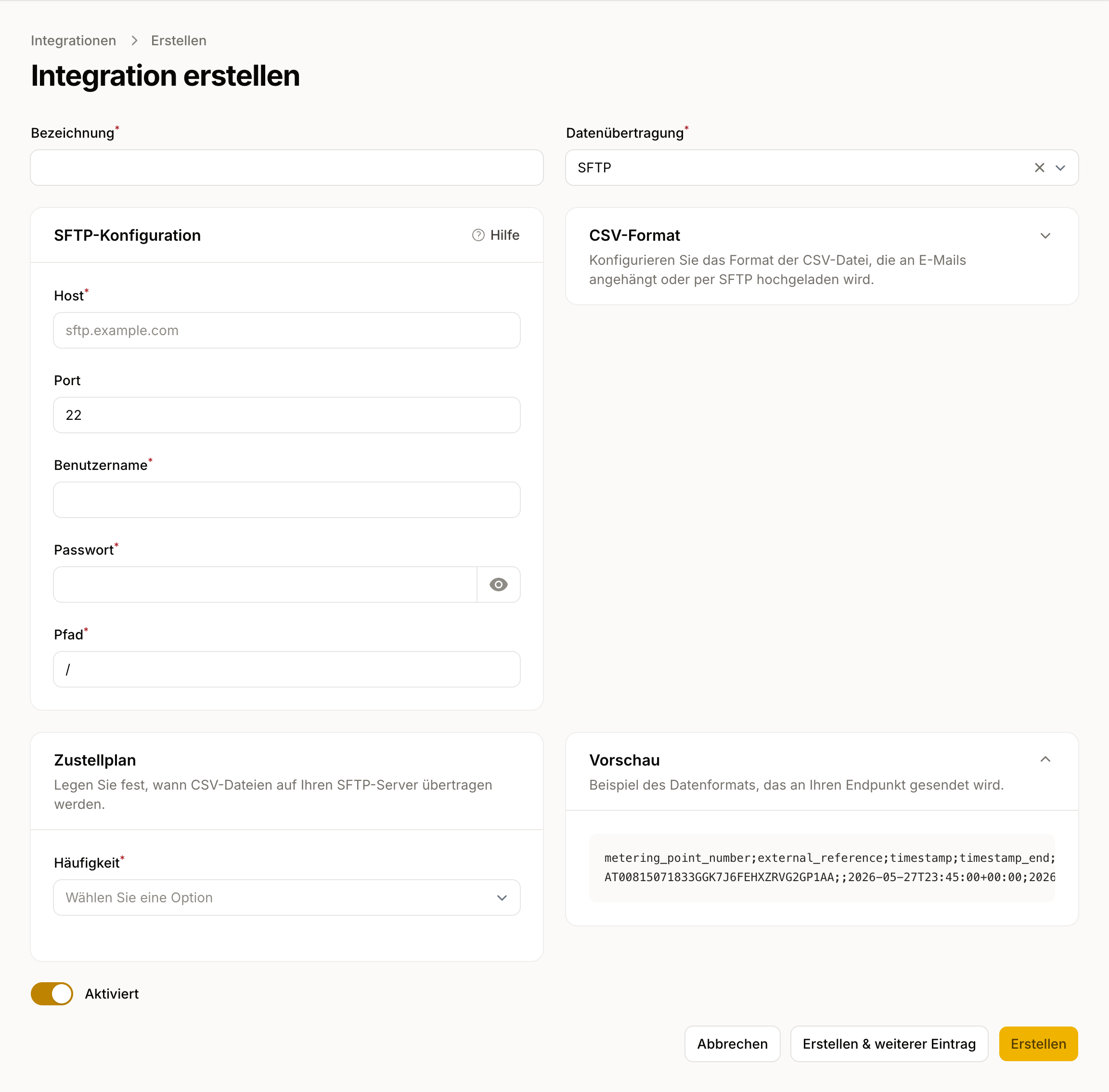
- Go to Data → Integrations → New Integration.
- Select the type SFTP.
- Configure the connection:
| Field | Description |
|---|---|
| Host | Server hostname, without a protocol prefix (e.g. sftp.example.com) |
| Port | Default: 22 |
| Username | SFTP username |
| Password | SFTP password. Username and password are stored encrypted. |
| Path | Target directory on the server (default: /) |
- Save the connection and assign the meters you want under Assigned meters.
File Format
The file format matches Email & CSV delivery: UTF-8 with a configurable column and decimal separator. The default is the Austrian convention (semicolon as the column separator, comma as the decimal separator), compatible with Microsoft Excel and LibreOffice Calc.
Schedule
In the Delivery Schedule section, use Frequency and Time to set when the CSV files are uploaded: daily, weekly, or monthly. The default is daily at 08:00 (local time).
Notes
- If the upload fails 5 times in a row, the connection is deactivated and you receive a notification. Status and error details are available under Delivery Logs & Errors.
- For delivery as soon as new data arrives instead of on a schedule, use Webhooks or MQTT.
